
Font identification wired straight into Creative Cloud
Visual Search is the image-upload front end to Adobe Fonts. Added to the service in 2024, it takes a JPG, PNG, GIF or WebP, asks you to draw a box around a single line of text, and returns a ranked list of typefaces from the Adobe Fonts library that visually match the letterforms in that crop.
What separates it from every other tool on this site is what happens after the match. Adobe Fonts is a licensing service, not a marketplace — so there is no checkout step. Click Add font on a result and the font is immediately available in Photoshop, Illustrator, InDesign and the rest of Creative Cloud, with the licence already covered by your plan. No download, no font file to install, no purchase decision. For anyone working inside Adobe apps, that collapses identification and usage into a single action.
The trade-off is catalogue size. Adobe Fonts carries roughly 30,000 styles from more than 150 curated foundries — a well-chosen library, but an order of magnitude smaller than WhatTheFont's 400,000 or WhatFontIs' million-plus index. Visual Search can only ever return something Adobe licences, so a font from DaFont, an independent designer, or a foundry Adobe does not carry will never be named. You get the closest thing Adobe has instead.
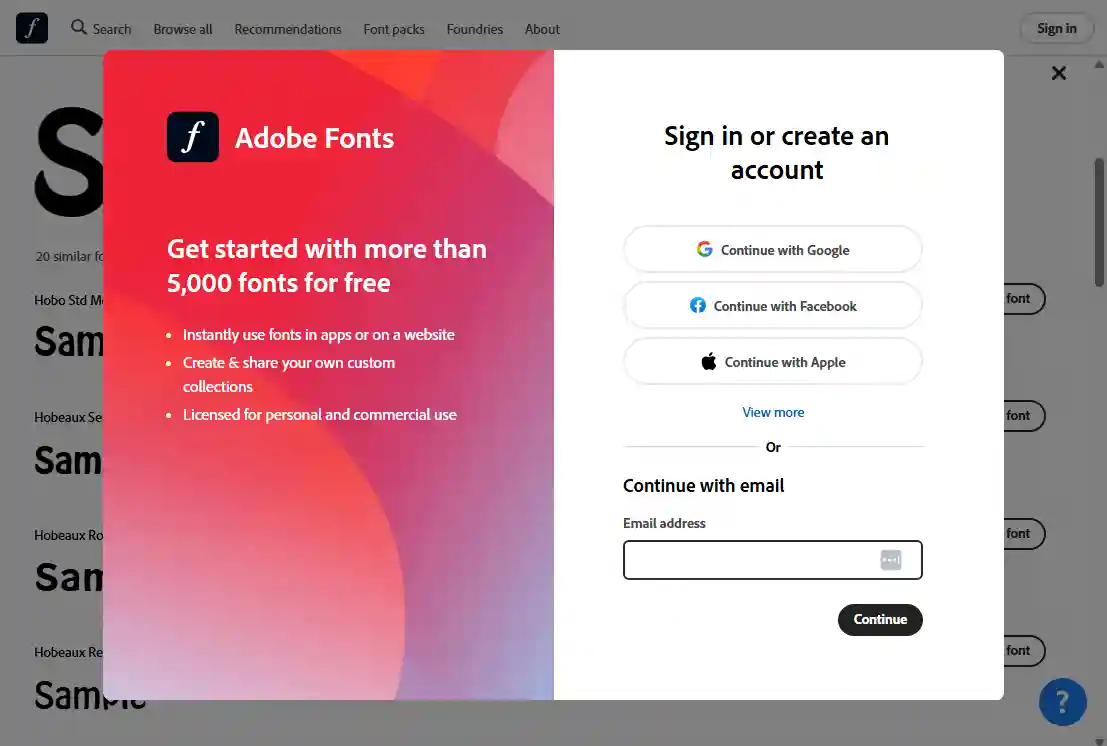
Identifying a font costs nothing and needs no account — you can upload, select a region and read the results anonymously. Signing in only becomes relevant at the activation step, and what you can actually activate depends on your plan: a free Adobe account covers more than 5,000 fonts, while any paid Creative Cloud plan covers the full library.
What Visual Search offers
Matched fonts activate straight into Photoshop, Illustrator, InDesign and every other Creative Cloud app, with licensing already covered by your plan. No download, no install, no purchase.
A crop box is placed over detected text automatically, and you drag its handles to adjust — so you get a sensible starting point plus precise control over which line of type is analysed.
Over 30,000 styles from more than 150 hand-picked foundries. Smaller than its rivals, but every result is a professionally produced typeface you can use immediately.
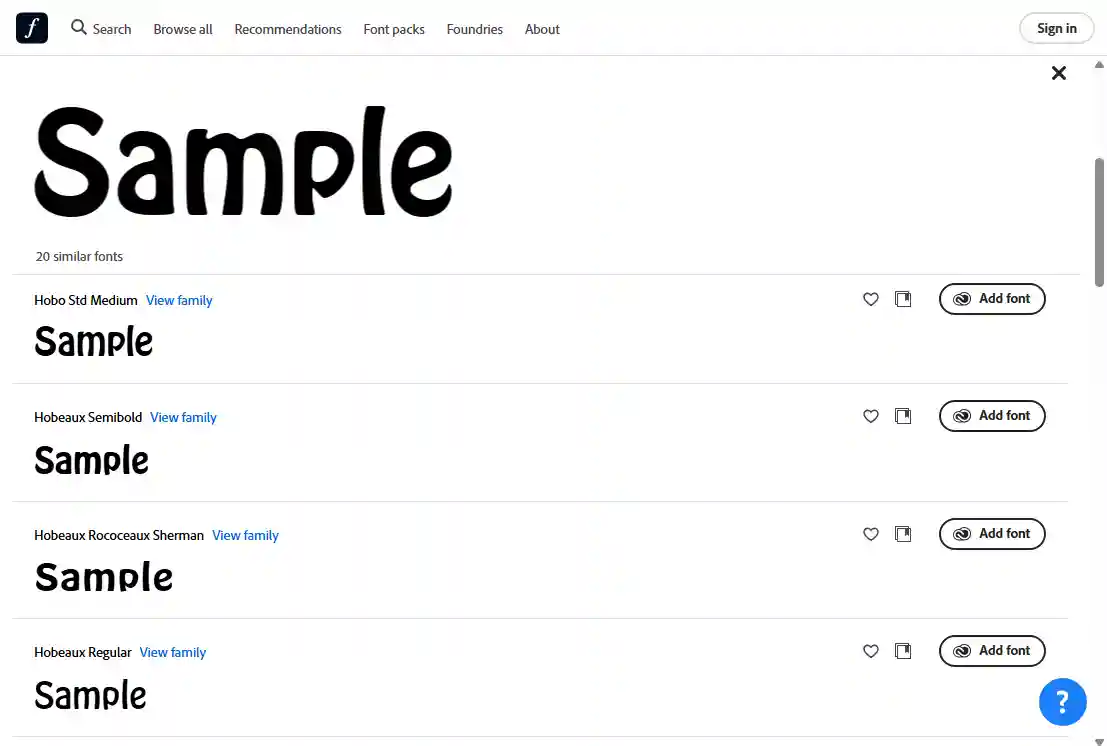
Every one of the 20 returned fonts is rendered in the exact word you cropped, not a generic specimen — so you compare real letterforms against your sample instead of guessing from a sentence of filler text.
Accepts JPG, PNG, GIF and WebP by drag-and-drop or file picker — broader format support than most competing identifiers, which typically take JPG and PNG only.
Each result carries a View family link through to every weight and width of that typeface, plus controls to favourite it or file it into one of your own Adobe Fonts collections.
Pros & Cons
Strengths
- Unmatched workflow for Adobe users — a matched font is one click from being live in Photoshop, Illustrator and InDesign, with the licence already included in the plan.
- No purchase step and no per-font cost. Identification and licensing are both covered, which is fundamentally different from marketplace-backed tools that send you to a checkout.
- Every result is a professionally produced typeface from a curated foundry — no low-quality knock-offs padding the list.
- Manual region selection gives precise control over which line of text is analysed, avoiding the mis-detections that automatic boxing sometimes produces.
Limitations
- By far the smallest catalogue of the major identifiers — roughly 30,000 styles against WhatTheFont's 400,000 and WhatFontIs' million-plus. Any font Adobe does not licence simply cannot be named.
- Identification is open to everyone, but acting on it is not — clicking Add font prompts you to sign in or create an account, and a free account reaches only part of the catalogue. The full library needs a paid Creative Cloud plan.
- Activation depends on the Creative Cloud desktop app running and signed in. Outside the Adobe ecosystem there is no font file to download, so the result is just a name to go and licence elsewhere.
- Only one line of text per search. Multi-line samples must be run separately, and the auto-placed crop box does not always pick the line you wanted.
How to use Adobe Fonts Visual Search
Five steps from an image on your desktop to a font live in your Adobe apps.
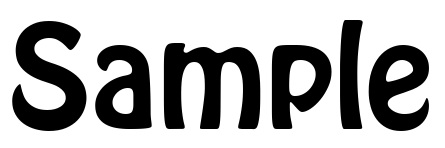
Crop so the text you want identified is clear and high-contrast. Visual Search accepts JPG, PNG, GIF and WebP. Because you select the region manually in the next step, a tight crop matters less here than with tools that auto-detect text — but a sharp, straight-on sample still produces markedly better matches.
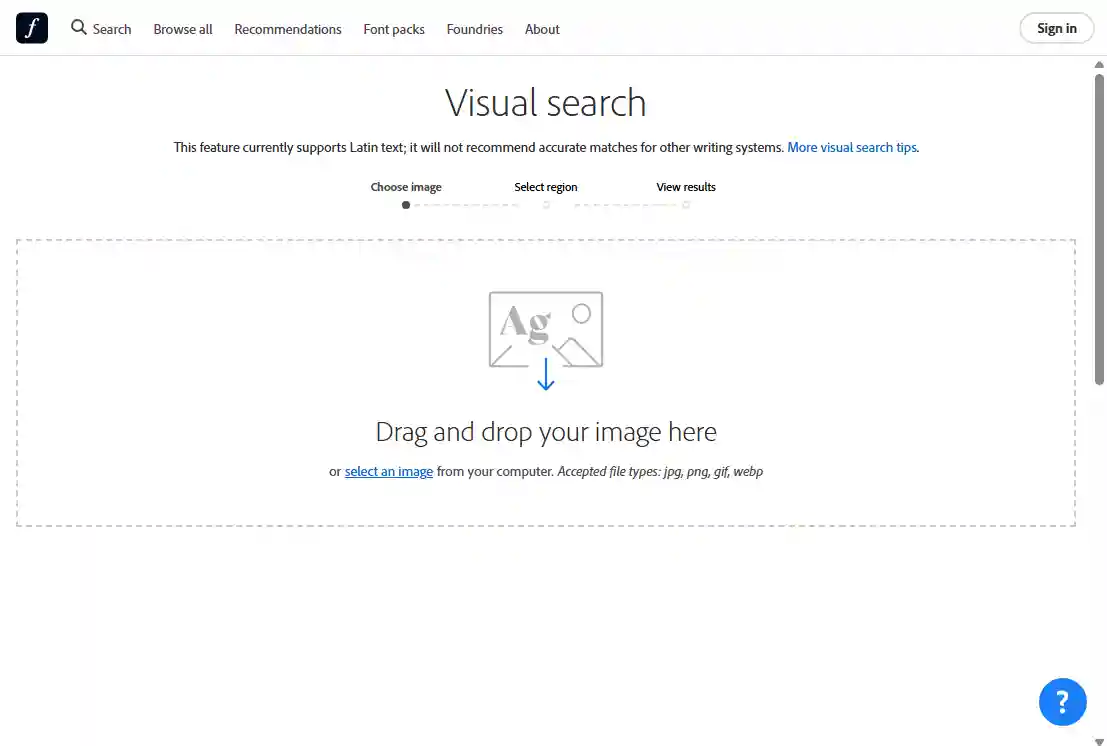
Go to fonts.adobe.com/fonts/vs/upload and drag and drop your image onto the upload panel, or click to select it from your computer. No account or sign-in is needed to search — you can upload and read results anonymously. The file is scanned server-side.
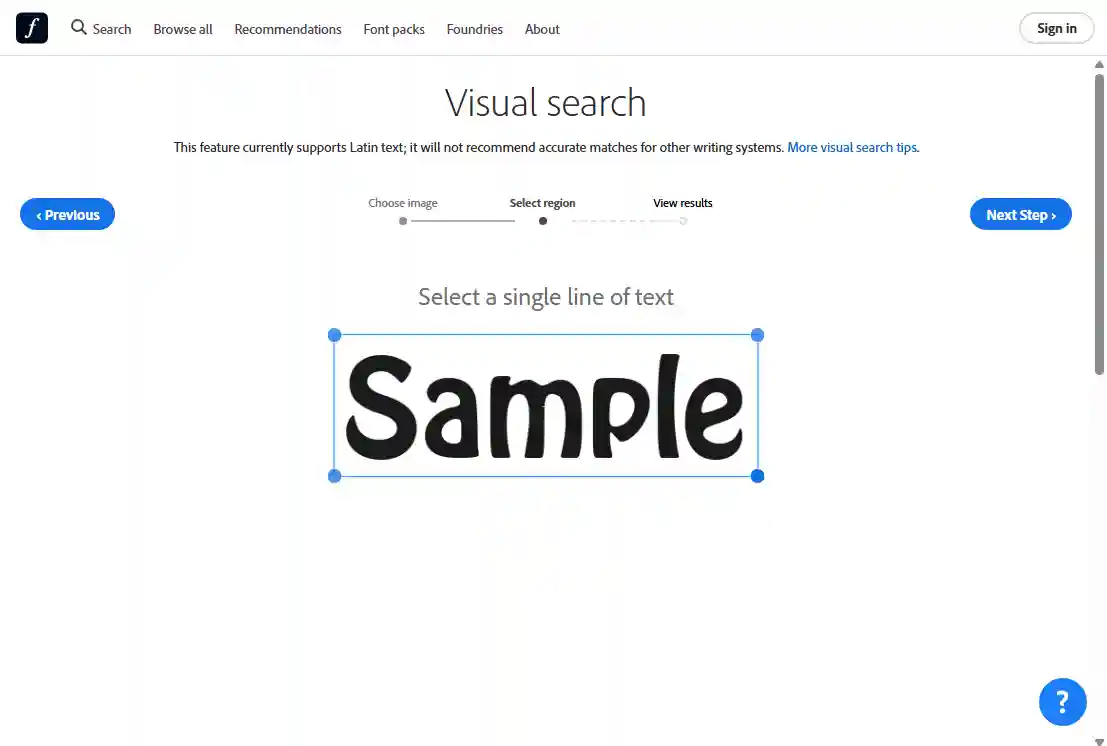
Visual Search places a crop box over the text it detects — on a multi-word image it will pick a phrase for you. Drag the corner handles to adjust it. Adobe asks for a single line of text, so if the auto-placed box spans two lines or a block of mixed type sizes, tighten it to one line before continuing.
Visual Search returns a fixed list of 20 similar fonts, ranked by closeness. Your cropped word is shown full-size at the top, and crucially every result below is rendered in that same word — so you compare the actual letterforms side by side rather than a generic specimen. Each row gives the font name, a View family link to the rest of the weights, and buttons to favourite it or add it to a collection.
Everything up to this point works without an account. Clicking Add font is where Adobe prompts you to sign in or create an account — via Google, Facebook, Apple or email. A free account covers more than 5,000 fonts, licensed for personal and commercial use; a paid Creative Cloud plan covers the full library. Once added, the font appears in Photoshop, Illustrator, InDesign and the rest of Creative Cloud within seconds. No download, no checkout.
Real-world identification results
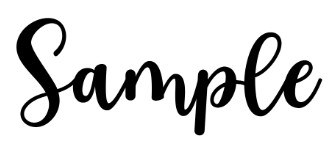
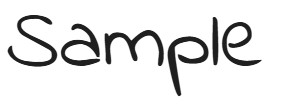
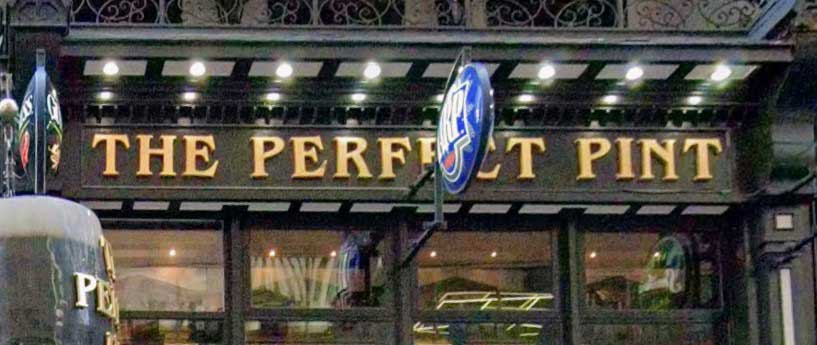
The same five test images put through every tool on this site — from clean commercial type to a perspective-distorted sign — to see how Visual Search performs under realistic conditions.

Free to search, licensed through your plan
Visual Search is free and needs no account — upload an image, get a ranked list of matches, no sign-up and no limits. The cost question only arises when you want to use the font you found. Activation requires signing in, and a free Adobe account covers more than 5,000 fonts. Any paid Creative Cloud plan — including single-app subscriptions — covers the full library of 30,000+ styles for personal and commercial use. There is no per-font purchase at any tier.
Try Adobe Fonts Visual Search now
Upload your image, box a line of text, and activate the match straight into Photoshop, Illustrator and InDesign — no download, no checkout.
More ways to find a font from an image

Best for Chinese, Japanese and Korean.

Human experts for custom lettering.

Free AI engine for clean commercial type.
Last updated · See the full comparison table
★★★★★ Identified in the top 3 results
★★★★☆ Identified in top 4–10 results
★★★☆☆ Identified after the 10th result
★★☆☆☆ Not identified — only close similars returned
★☆☆☆☆ Complete miss
Comments
No comments yet. Be the first to share your experience.
Leave a comment