
Font identification built for the desktop
Find my Font is a dedicated desktop application for Windows and Mac, built for designers who want to identify a typeface without leaving their workstation. Rather than running in a browser, the software installs locally and searches a database of over 1,200,000 fonts, spanning commercial foundries and free font libraries, also matching up to 200,000 fonts per second locally.
What sets it apart from web-based identification tools is its ability to search two sources at once: the online database, and every font already installed or located on your computer. If you've licensed a typeface locally or have a large personal font library, Find my Font can match against it directly — something browser-based tools cannot do.
Find my Font also stands out for its image correction tools. Real-world photos of text are rarely clean: signage is shot at an angle, logos curve text along an arc, and script fonts connect one letter into the next. FmF includes a dedicated set of tools to correct skewed or arced text, isolate letters that blend into a background, and break apart connected script letters — steps that most web-based identifiers skip entirely, and which meaningfully improve match accuracy on difficult images.
A free 30-day trial with limited features lets you evaluate the software before committing to the one-time $49 Pro edition, which unlocks unlimited use.
What Find my Font offers
A vast database spanning all major commercial foundries and almost all free font libraries (Google, DaFont etc.).
Searches every font already installed or located on your PC, so fonts you've already licensed or downloaded can be matched directly.
A dedicated set of tools straightens skewed text and flattens text set on an arc or deformed curve, so photographed or angled type can still be matched accurately.
Breaks apart connected script letters and helps select multipart or background-blended characters, letter by letter, before matching.
Returns matching and visually similar fonts complete with accuracy scores, plus a live preview of your own custom text in each result.
Install a matched local font straight from the results list, with support for TrueType, OpenType, and Type 1 PostScript formats.
Pros & Cons
Strengths
- A 1,200,000+ font database - one of the largest and most comprehensive libraries.
- The only identification tool that also scans your locally installed fonts at amazing speeds — a capability no browser-based tool offers.
- Built-in skew, arc, and script-correction tools handle difficult real-world images that defeat most web-based identifiers.
- A one-time $49 Pro purchase rather than a recurring subscription unlocks unlimited use forever.
Limitations
- Requires installing desktop software — there's no way to identify a font directly in the browser.
- The free edition is limited to a 30-day trial — unlimited use requires the paid $49 Pro edition.
- The correction tools add extra manual steps compared to a fully automatic web upload, especially for simple, clean images.
How to use Find my Font
Download, load your image, select the letters, and match — searching online and local fonts at once.
Open an image file. You may also paste, drag and drop an image or take a screenshot.
Find my Font loads it into the workspace, ready for you to click on the letters you want matched.
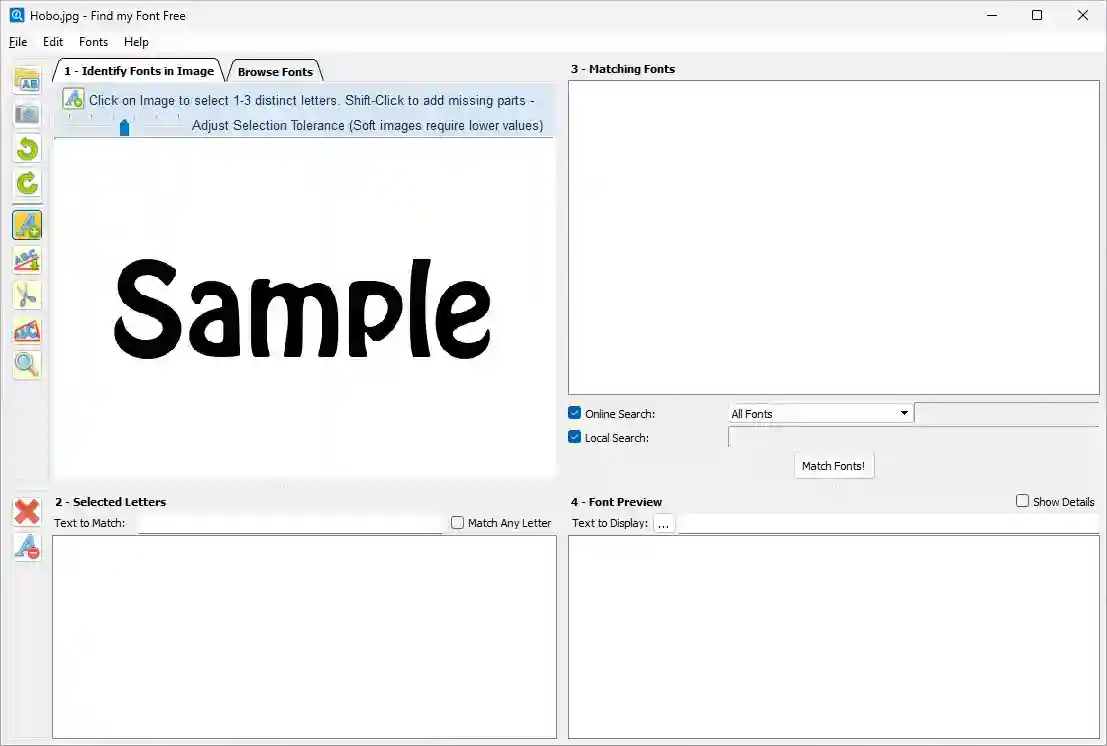
If the image is skewed, distorted or the text is on a curve, there are tools to fix it.
The scissors tool helps separate connected script letters or ones that blend into the background.
Click on 1–3 distinct letters to select them — shift-click to add missing parts of a letter.
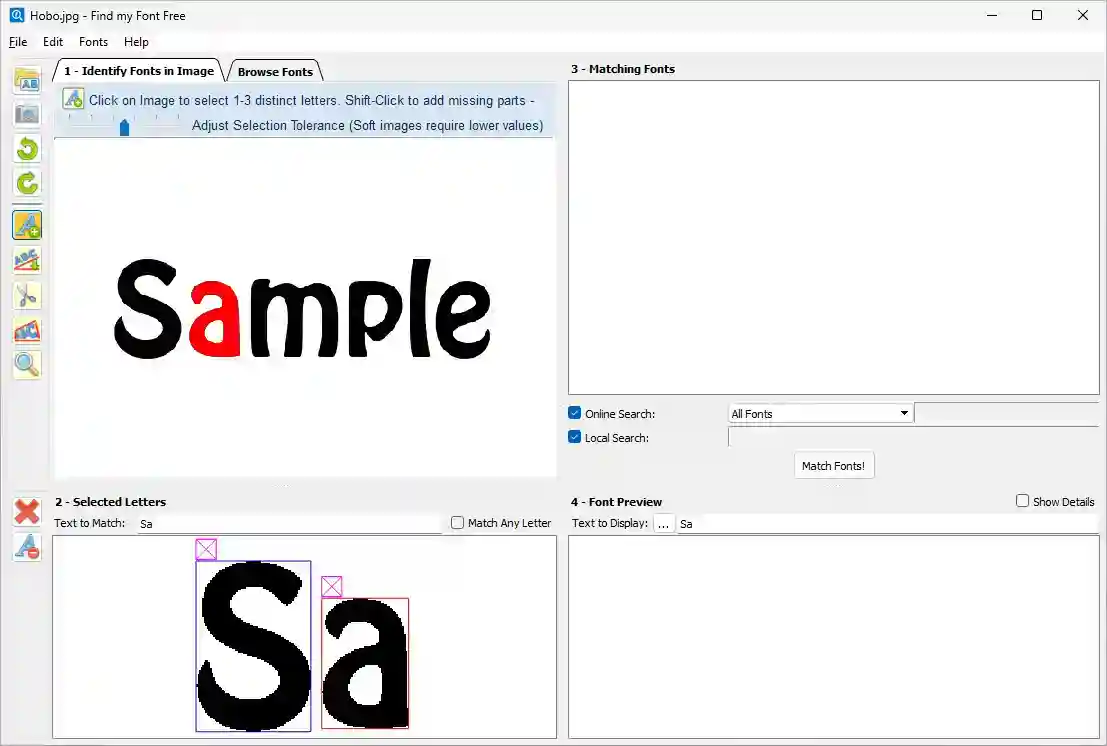
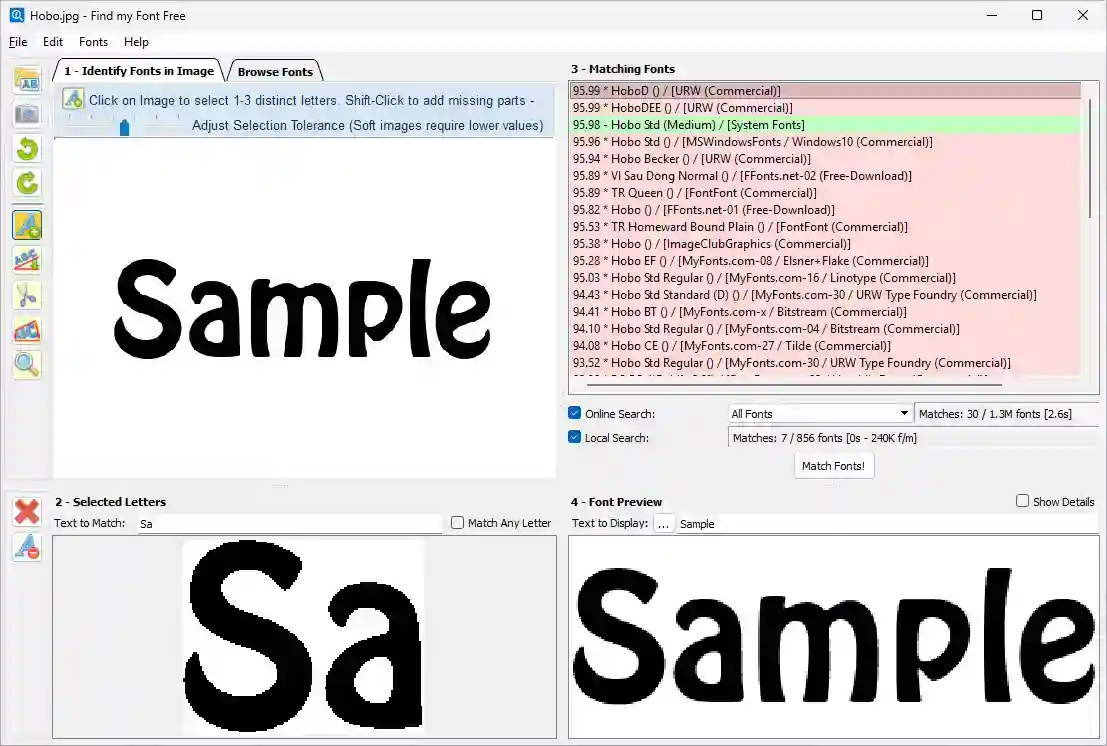
Click "Match Fonts!" to search online and local fonts at once.
Results are ranked by similarity score, with a live preview of your own text in the matched font.
Local fonts are marked with green background.
Double clicking on a font will take you to the corresponing web page for purchase or download.
If its a local font, you may install to your system if it's not already installed.
Real-world identification results
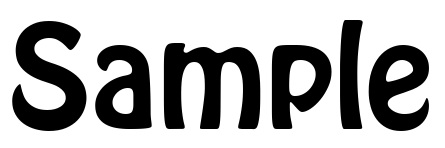
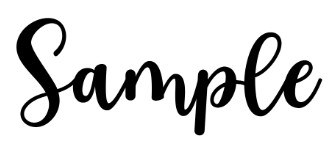
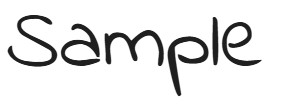
The same five test images used across our reviews — submitted to Find my Font to see how its letter-selection workflow and 1,200,000+ font database perform.


Free trial, one-time Pro upgrade
A free 30-day trial is available before you need to purchase the Pro edition.
- Local & online font search
- Skew, arc & script correction tools
- Limited local font scanning
- Not for ongoing unlimited use
- Everything in Free, plus
- Unlimited usage
- Full local font scanning
- Unlimited identifications on a paired phone or tablet
A free mobile edition is also available for iOS and Android. See here for details →
Pro also unlocks the mobile app
This is easy to miss, and it meaningfully changes the value of the $49 licence. The mobile edition is free but metered — five identifications per 24 hours, after which you buy credit packs, with an unlimited pack sold at €15.99. Connect a device to your Pro account instead (Help › Find my Font mobile, using the App id from the app's About screen) and that device is granted unlimited identifications at no extra cost. Pairing needs Pro 3.3.15 or later. Softonium documents it as lifting the request limit only — no fonts, history or settings are described as syncing between the two editions.
Try Find my Font now
Download the Windows or Mac app, upload an image, and get matches from over 1,200,000 fonts plus your own installed font library.
More ways to find a font from an image

Free, strong on headline and logo lettering.

Matches activate in Creative Cloud apps.

Best for Chinese, Japanese and Korean.
Last updated · See the full comparison table
★★★★★ Identified in the top 3 results
★★★★☆ Identified in top 4–10 results
★★★☆☆ Identified after the 10th result
★★☆☆☆ Not identified — only close similars returned
★☆☆☆☆ Complete miss
Comments
No comments yet. Be the first to share your experience.
Leave a comment